Category Archives: Powershell

Delete all email addresses but one on a mailbox

  Get-Mailbox -Identity $userprincipalname |
    
    # Loop through all the emailaddresses
    foreach { 
       $a = $_.emailaddresses
       $b = $_.emailaddresses
     
     # Remove all but $keepmail
       foreach($e in $a) 
           { 
           if ($e.tostring() -notmatch $keepmail ) 
               { $b -= $e; } 
           $_ | Set-mailbox -EmailAddressPolicyEnabled $false -emailaddresses $b -alias $userprincipalname
           }
    }
    
    # We had to remove the emailaddresspolicy to make changes. Let's reactivate it
    Set-mailbox -Identity $userprincipalname -EmailAddressPolicyEnabled $true
}

Easier ForEach/Where-Object in Powershell V3

PowerTip of the Day, from PowerShell.com

In the upcoming PowerShell v3 which you can already download as a Beta version, using Where-Object and ForEach-Object becomes a lot simpler. No longer do you need a script block and code. This, for example, is all you need to find files larger than 1MB:

Get-ChildItem $env:windir | Where-Object Length -gt 1MB

Previously, you would have had to write:

Get-ChildItem $env:windir | Where-Object { $_.Length -gt 1MB }

Creating home directory for user

When setting the -homedirectory switch on a user through Powershell the directory is not created.
Use this code to create the folder and apply the necessary ACLs:

    if ( !(Test-Path -Path "$homedir$userprincipalname" -PathType Container) ) {
         ## Doesn't exist so create it.
         Write-Host "home directory doesn't exist. Creating home directory."

         ## Create the directory
         New-Item -path $homedir -Name $userprincipalname -ItemType Directory
         $userDir = "$homedir$userprincipalname"

         ## Modify  Permissions on homedir
         $Rights= [System.Security.AccessControl.FileSystemRights]::Read -bor [System.Security.AccessControl.FileSystemRights]::Write -bor [System.Security.AccessControl.FileSystemRights]::Modify -bor [System.Security.AccessControl.FileSystemRights]::FullControl
         $Inherit=[System.Security.AccessControl.InheritanceFlags]::ContainerInherit -bor [System.Security.AccessControl.InheritanceFlags]::ObjectInherit
         $Propogation=[System.Security.AccessControl.PropagationFlags]::None
         $Access=[System.Security.AccessControl.AccessControlType]::Allow
         $AccessRule = new-object System.Security.AccessControl.FileSystemAccessRule("$userprincipalname",$Rights,$Inherit,$Propogation,$Access)
         $ACL = Get-Acl $userDir
         $ACL.AddAccessRule($AccessRule)
         $Account = new-object system.security.principal.ntaccount($userprincipalname)
         $ACL.setowner($Account)
         $ACL.SetAccessRule($AccessRule)
         Set-Acl $userDir $ACL
    }

Thank you very much for this tip Shay Levy!

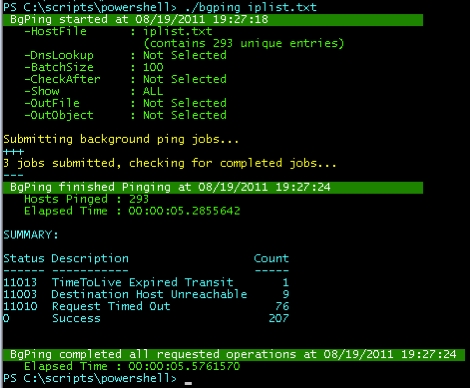
BgPing – A High Performance Bulk Ping Utility


xb90 from Posh Tips has written a gorgeous masterpiece; BgPing.

Description from Posh Tips:
“BgPing.ps1 is a Background Ping Script capable of pinging enormous hosts lists in record time. You could call it a Bulk Ping Script, a Mass Ping Script, a Batch Ping Script or even a Mega Ping Script but the bottom line is: this baby will crank through a lot of IP addresses (or hostnames) very quickly.”

Adding snapins/modules to PowerShell

# Import the ActiveDirectory cmdlets
Import-Module ActiveDirectory

# List available snapins on your system:
Get-PSSnapin

# List registered snapins
Get-PSSnapin -Registered

# Alias:
gsnp

# Add Snapin:
Add-PSSnapin

# Examples:
Add-PSSnapin Microsoft.Exchange.Management.PowerShell.Admin # Exchange 2007
Add-PSSnapin Microsoft.Exchange.Management.PowerShell.E2010 # Exchange 2010
Add-PSSnapin Microsoft.SystemCenter.VirtualMachineManager # WMM (Hyper-V)
Add-PSSnapin Quest.Activeroles.ADManagement # Quest commandlets

(You can download the Quest Commandlets from <a href="# Install from http://www.quest.com/powershell/activeroles-server.aspx&#8221; title=”# Install from http://www.quest.com/powershell/activeroles-server.aspx“>here.)

You will get an error if you try to add a snapin that is already added. Your script will continue to run but you’ll have a bunch of nasty red letters in your shell. Not too sexy, eh? The way to avoid this is to first check if the snapin is loaded and then only load if it is not.
Do it like this:

# Add Exchange 2007 commandlets (if not added)
if(!(Get-PSSnapin | 
    Where-Object {$_.name -eq "Microsoft.Exchange.Management.PowerShell.Admin"})) {
      ADD-PSSnapin Microsoft.Exchange.Management.PowerShell.Admin
    }

# Add Exchange 2010 commandlets (if not added)
if(!(Get-PSSnapin | 
    Where-Object {$_.name -eq "Microsoft.Exchange.Management.PowerShell.E2010"})) {
      ADD-PSSnapin Microsoft.Exchange.Management.PowerShell.E2010
    }

# Add Virtual Machine Manager (Hyper-V) commandlets (if not added)
if(!(Get-PSSnapin | 
    Where-Object {$_.name -eq "Microsoft.SystemCenter.VirtualMachineManager"})) {
      ADD-PSSnapin Microsoft.SystemCenter.VirtualMachineManager
    }

# Add Quest commandlets (if not added)
if(!(Get-PSSnapin | 
    Where-Object {$_.name -eq "Quest.Activeroles.ADManagement"})) {
      ADD-PSSnapin Quest.Activeroles.ADManagement
    }

Head on over to http://blogs.technet.com/b/heyscriptingguy/archive/2010/10/16/learn-how-to-load-and-use-powershell-snap-ins.aspx to learn more about snapins.

Display size of cluster shared volumes

Import-Module FailoverClusters

$objs = @()

$csvs = Get-ClusterSharedVolume
foreach ( $csv in $csvs )
{
   $csvinfos = $csv | select -Property Name -ExpandProperty SharedVolumeInfo
   foreach ( $csvinfo in $csvinfos )
   {
      $obj = New-Object PSObject -Property @{
         Name        = $csv.Name
         Path        = $csvinfo.FriendlyVolumeName
         Size        = $csvinfo.Partition.Size
         FreeSpace   = $csvinfo.Partition.FreeSpace
         UsedSpace   = $csvinfo.Partition.UsedSpace
         PercentFree = $csvinfo.Partition.PercentFree
      }
      $objs += $obj
   }
}

$objs | ft -auto Name,Path,@{ Label = "Size(GB)" ; Expression = { "{0:N2}" -f ($_.Size/1024/1024/1024) } },@{ Label = "FreeSpace(GB)" ; Expression = { "{0:N2}" -f ($_.FreeSpace/1024/1024/1024) } },@{ Label = "UsedSpace(GB)" ; Expression = { "{0:N2}" -f ($_.UsedSpace/1024/1024/1024) } },@{ Label = "PercentFree" ; Expression = { "{0:N2}" -f ($_.PercentFree) } }